 SmartSpectra SDK
Debian 13 (Trixie)
Install the SmartSpectra C++ SDK on Debian 13 (Trixie) for amd64 and arm64.
Important: SDK metrics are offered for general wellness and informational purposes only. SDK metrics have not been cleared by the FDA and may not be used for medical diagnosis or treatment.
Warning — Experimental platform: Linux support for the SmartSpectra C++ SDK is experimental. If you have any issues running SmartSpectra, contact Presage support for assistance.
This guide covers the trixie apt suite, which supports both amd64 and
arm64. For Ubuntu and Linux Mint, choose the matching
Linux installation guide.
- CMake 3.22.1 or later (the version shipped with Debian 13 (Trixie) is sufficient)
- C++20 compiler such as GCC or Clang
- Vulkan-capable graphics driver — Linux builds use Vulkan inference by default. The SDK package installs the Vulkan loader dependency through apt, but the host must provide a working Vulkan driver.
build-essential,cmake,curl,gpg,git, andpkg-config— used by the build, install, and verify steps below. Install withsudo apt update && sudo apt install build-essential cmake curl gpg git pkg-configif they are not already present.- API key from physiology.presagetech.com
Install the Presage signing key:
sudo install -d -m 0755 /etc/apt/keyrings
curl -fsSL https://packages.presagetech.com/KEY.gpg \
  | sudo gpg --dearmor -o /etc/apt/keyrings/presage-archive-keyring.gpg
sudo chmod 644 /etc/apt/keyrings/presage-archive-keyring.gpg
Add the trixie apt source:
echo "deb [signed-by=/etc/apt/keyrings/presage-archive-keyring.gpg] https://packages.presagetech.com/apt/debian trixie main" \
  | sudo tee /etc/apt/sources.list.d/presage-technologies.list
Installing an RC build? Keep the stable source configured and follow the release-candidate channel steps below.
Install the SDK:
sudo apt update
sudo apt install libsmartspectra-dev
The signed-by= source entry scopes the Presage signing key to the Presage
apt repository. APT selects the package matching your system's
dpkg --print-architecture (amd64 or arm64) automatically.
The SmartSpectra SDK package is self-contained. You do not need to install protobuf, curl, OpenSSL, or other SDK runtime libraries separately.
Verify that the package is visible to build tools:
pkg-config --modversion SmartSpectraThe command prints the installed SDK version (for example, 3.3.0). If it
prints nothing or reports that the package is missing, reinstall
libsmartspectra-dev and confirm you are on a supported Debian 13 (Trixie) (amd64 or arm64) host.
This quick start creates a minimal CMake project that links against the
installed SmartSpectra::SDK package and reads from the default camera.
You will create exactly these files:
hello_vitals/hello_vitals.cpphello_vitals/CMakeLists.txt
At the end, the app should show console output with:
- a successful CMake configure and build
Processing... Press Ctrl+C to stop.Cardio metrics:log lines when cardio metrics are availableBreathing metrics:log lines when breathing metrics are available- a clean exit after you stop the sample
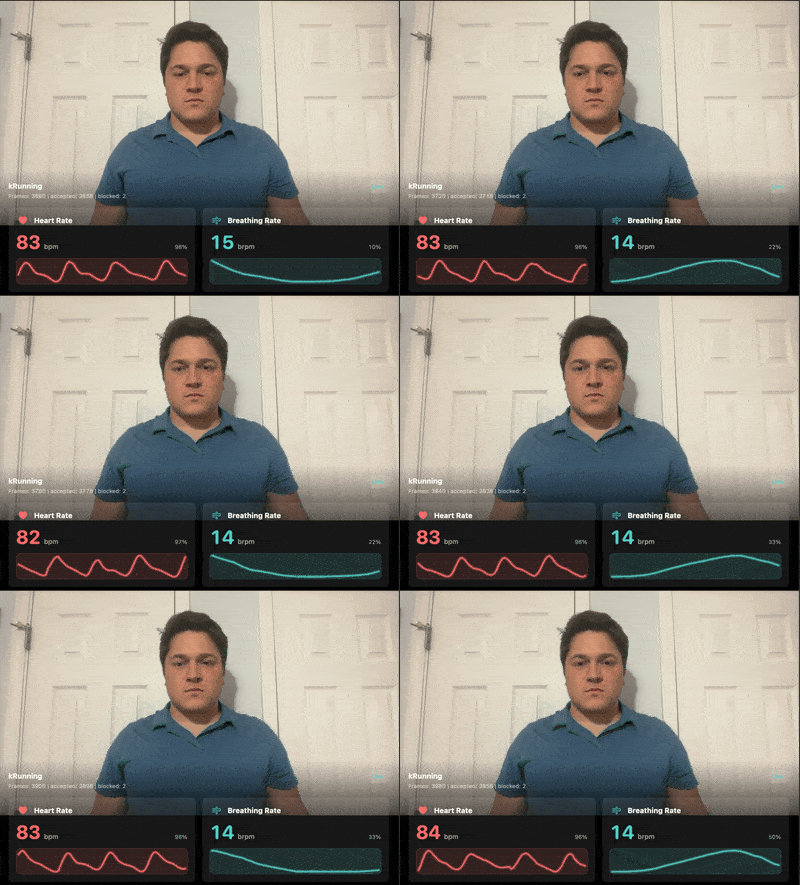
- Open the Presage Developer Admin Portal Registration.
- Register or log in.
- Copy your API key from the portal.
mkdir hello_vitals
cd hello_vitalsOpen a new file named hello_vitals.cpp in your editor of choice and paste this
entire file:
This example also lives in smartspectra/cpp/samples/hello_vitals/.
#include <smartspectra/messages/metrics.h>
#include <smartspectra/smartspectra.h>
#include <smartspectra/smartspectra_config.h>

#include <chrono>
#include <csignal>
#include <cstdlib>
#include <iostream>
#include <string>
#include <thread>

namespace spectra = presage::smartspectra;

namespace {

volatile std::sig_atomic_t g_stop_requested = 0;

void HandleSignal(int) {
    g_stop_requested = 1;
}

std::string ResolveApiKey(int argc, char** argv) {
    if (argc > 1) {
        return argv[1];
    }
    if (const char* key = std::getenv("SMARTSPECTRA_API_KEY")) {
        return key;
    }
    return {};
}

}  // namespace

int main(int argc, char** argv) {
    std::signal(SIGINT, HandleSignal);
    const std::string api_key = ResolveApiKey(argc, argv);
    if (api_key.empty()) {
#if defined(_WIN32)
        std::cerr << "Usage: .\\hello_vitals.exe YOUR_API_KEY\n"
                  << "or set SMARTSPECTRA_API_KEY=YOUR_API_KEY\n";
#else
        std::cerr << "Usage: ./hello_vitals YOUR_API_KEY\n"
                  << "or export SMARTSPECTRA_API_KEY=YOUR_API_KEY\n";
#endif
        return 1;
    }

    spectra::SmartSpectraConfig config;
    config.api_key = api_key;
    config.requested_metrics = spectra::SmartSpectraConfig::BreathingMetrics();
    config.AddMetrics(spectra::SmartSpectraConfig::CardioMetrics());

    spectra::SmartSpectra sdk(config);
    sdk.SetOnMetrics([](const spectra::Metrics& metrics, int64_t) {
        if (metrics.has_cardio()) {
            std::cerr << "Cardio metrics: "
                      << metrics.cardio().ShortDebugString() << "\n";
        }
        if (metrics.has_breathing()) {
            std::cerr << "Breathing metrics: "
                      << metrics.breathing().ShortDebugString() << "\n";
        }
    });
    sdk.SetOnValidationStatusChanged(
        [have_last_status = false,
         last_code = spectra::ValidationCode::kOk,
         last_hint = std::string{}](const spectra::ValidationStatus& status, int64_t) mutable {
            if (have_last_status &&
                status.code == last_code &&
                status.hint == last_hint) {
                return;
            }
            have_last_status = true;
            last_code = status.code;
            last_hint = status.hint;
            std::cerr << "Validation [" << status.code
                      << "]: " << status.hint << "\n";
        });
    sdk.SetOnError([](const spectra::SmartSpectraError& error) {
        std::cerr << "Error [" << static_cast<int>(error.code)
                  << "]: " << error.message << "\n";
    });

    const auto source_error =
        sdk.UseCamera(spectra::CameraSelection::Default())
            .SetResolution(1280, 720).SetFps(30).Build();
    if (!source_error.ok()) {
        std::cerr << "Failed to create camera source: "
                  << source_error.message << "\n";
        return 1;
    }

    if (const auto err = sdk.Start(); !err.ok()) {
        std::cerr << "Failed to start: " << err.message << "\n";
        return 1;
    }

    std::cout << "Processing... Press Ctrl+C to stop.\n";
    while (!g_stop_requested) {
        std::this_thread::sleep_for(std::chrono::milliseconds(200));
    }
    if (const auto err = sdk.Stop(); !err.ok()) {
        std::cerr << "Stop failed: " << err.message << "\n";
    }
    return 0;
}
The example requests breathing and cardio metrics. Add FaceMetrics() or other
metric groups with config.AddMetrics(...) when your app expects those outputs.
Open a new file named CMakeLists.txt in the same directory and paste this
entire file:
cmake_minimum_required(VERSION 3.22.1)
project(SmartSpectraHelloVitals CXX)
set(CMAKE_CXX_STANDARD 20)
set(CMAKE_CXX_STANDARD_REQUIRED ON)

find_package(SmartSpectra CONFIG REQUIRED)
add_executable(hello_vitals hello_vitals.cpp)
target_link_libraries(hello_vitals SmartSpectra::SDK)cmake -S . -B build
cmake --build buildA successful build produces the executable at build/hello_vitals. If CMake
reports that it cannot locate SmartSpectra, rerun
pkg-config --modversion SmartSpectra to confirm the SDK is installed
correctly before continuing.
Pass the API key as an argument:
./build/hello_vitals YOUR_API_KEYOr set it once in your shell:
export SMARTSPECTRA_API_KEY="YOUR_API_KEY"
./build/hello_vitals
Sit centered in front of the webcam, well-lit, and stay reasonably still. The
app logs breathing and cardio metrics until you stop it with Ctrl+C. If no
face is detected the app still runs and exits cleanly, but no metrics callbacks
fire. An internet connection is required for subscription validation when using
the standard SDK.
When your program is running, you should see all of these:
Processing... Press Ctrl+C to stop.prints after launch- the camera starts without a source creation error
Cardio metrics:orBreathing metrics:logs print while you sit centered and well-lit- the process exits after
Ctrl+Cwithout aStop failedmessage
The first measurement should start after the executable launches with a valid
API key argument or SMARTSPECTRA_API_KEY environment variable. If startup
fails with an authentication error, verify that the key is authorized for this
app and that your shell did not include extra quotes or whitespace.
If the console output does not match the target state, check these first:
- the Presage apt source was added for the wrong distribution or suite
libsmartspectra-devdid not finish installing before CMake was run- the API key argument or
SMARTSPECTRA_API_KEYenvironment variable is missing - another app is already using the camera
- the binary is an older build from before the latest source change
Current SDK releases run without a desktop session in Docker, CI, and SSH-only environments. No alternate SDK package or additional system-service setup is required.
The SDK package does not install the sample source code. To build the repository
samples against the installed SDK, clone the SmartSpectra repository after
installing libsmartspectra-dev.
Several of the samples use OpenCV for video capture and display, and CMake
configures every sample in the tree even when you build a single target, so
install the OpenCV development package first. The hello_vitals quickstart
earlier on this page is a standalone project and does not need it.
sudo apt install libopencv-dev
git clone https://github.com/Presage-Security/SmartSpectra.git
cd SmartSpectra/cpp/samples
cmake -S . -B build -DCMAKE_BUILD_TYPE=Release
cmake --build build --target minimal_example
Run a sample with your API key:
./build/minimal_example/minimal_example --api_key=YOUR_API_KEYTo run headlessly against a recording instead of the default camera, add
--input_video_path=/path/to/video.mp4.
Most users only need the stable trixie repository above. Use these when you
intentionally need release-candidate packages, version pinning, or repository
removal.
To keep a working machine on the currently installed SDK version while you test or stage a rollout, hold the package:
sudo apt-mark hold libsmartspectra-devRelease the hold when you are ready to take SDK updates again:
sudo apt-mark unhold libsmartspectra-devRelease-candidate builds are published to the parallel trixie-rc apt suite
signed by the same Presage key:
echo "deb [signed-by=/etc/apt/keyrings/presage-archive-keyring.gpg] https://packages.presagetech.com/apt/debian trixie-rc main" \
  | sudo tee /etc/apt/sources.list.d/presage-technologies-rc.list

sudo apt update && sudo apt -t trixie-rc install libsmartspectra-dev
Keep the stable trixie source configured alongside trixie-rc; the RC channel
does not republish stable releases.
sudo apt update
sudo apt install --allow-downgrades --reinstall -t trixie libsmartspectra-dev=$(apt-cache madison libsmartspectra-dev | awk '/trixie\/main/ {print $3; exit}')
sudo rm -f /etc/apt/sources.list.d/presage-technologies-rc.list
sudo rm -f /etc/apt/preferences.d/presage-rc
sudo apt updatesudo apt remove --purge libsmartspectra-dev
sudo apt autoremove --purge
sudo rm -f /etc/apt/sources.list.d/presage-technologies.list
sudo rm -f /etc/apt/sources.list.d/presage-technologies-rc.list
sudo rm -f /etc/apt/preferences.d/presage-rc
sudo rm -f /etc/apt/keyrings/presage-archive-keyring.gpg
sudo rm -f /etc/apt/trusted.gpg.d/presage-technologies.gpg
sudo apt update- Configure which metrics to compute
- Run headless without video output
- Migration Guide for upgrading from older SDK versions
API reference available at C++ API Reference.
If you are upgrading an older C++ integration, start with the C++ Migration Guide.
Confirm that the host runs Debian 13 (trixie) and that
dpkg --print-architecture prints amd64 or arm64. Check that the Presage
source uses /apt/debian trixie main, then rerun sudo apt update.
Use the distribution-specific package; do not configure an Ubuntu suite on Debian.