 SmartSpectra SDK
Swift Troubleshooting
Solutions to common build, runtime, and integration issues with the SmartSpectra Swift SDK.
Ensure you're adding the package via File → Add Package Dependencies..., entering https://github.com/Presage-Security/SmartSpectra-Swift, and selecting the latest stable tag (3.3.0 at time of writing) for repeatable builds. Pin the current release rather than an older one — the migration guide documents behaviour changes since 3.0. Use Branch → main only when testing the latest final public release before pinning a version.
If you pasted a subdirectory URL such as /tree/main/swift/sdk, replace it with the repository root URL above. Swift Package Manager resolves the package from the repo root.
The simulator has no camera, so camera-driven measurement needs a physical device. Select a real device target in Xcode for normal development.
The simulator is supported for automated testing, where frames come from a video file rather than a camera — see Headless testing in CI, which runs a full measurement on the iOS Simulator.
In Xcode:
- Select your app target.
- Open the
Infotab. - Add a new row for
Privacy - Camera Usage Description. - Set the value to
This app needs camera access to measure vitals.
The SDK fails gracefully with a clear runtime error if this key is absent or empty.
Or add the entry directly to your Info.plist:
<key>NSCameraUsageDescription</key>
<string>This app needs camera access to measure vitals.</string>If the user previously denied camera access, the SDK surfaces an action to open iOS Settings. Ensure your Info.plist description string clearly explains why camera access is needed — iOS shows this string in the permission prompt, and a vague description increases denial rates.
- Verify your API key is correct, or that your OAuth plist is present and valid.
- Ensure the device has an active internet connection.
- Check that the key or app registration is active in physiology.presagetech.com.
If processing fails immediately with a missing-auth error, make sure you set sdk.config.apiKey = "YOUR_KEY" before calling try await SmartSpectraSDK.shared.start().
When registering your OAuth app, enter the app target's Bundle Identifier exactly as Xcode shows it, including capitalization. Enter your Apple Org ID (Team ID, e.g. AB12CDE34F) for the Organization ID: exactly 10 uppercase alphanumeric characters, not a certificate fingerprint. Find it in Xcode → Settings → Accounts, select your Apple ID and team, and read the Team ID value — or in your Apple Developer Account under Membership Details.
Place the downloaded PresageService-Info.plist in your app, enable its app-target membership, and add the App Attest capability under the target's Signing & Capabilities tab. Run on a supported physical iOS or iPadOS device and confirm DCAppAttestService.shared.isSupported is true; the simulator cannot create an App Attest identity.
The plist must set IS_OAUTH_ENABLED to true and contain non-blank string values for CLIENT_ID and SUB. BUNDLE_ID, when present, must exactly match the running app target's Bundle Identifier; older plists without BUNDLE_ID skip the local check and rely on the server's verification. An invalid field or mismatch produces a non-retryable configurationFailed error as soon as the SDK loads, before any authentication network request. The error message identifies the invalid field or mismatch without exposing its value.
Portal sandbox behavior controls which App Attest identities the server accepts:
- Enabled: accepts development identities from locally signed builds and production identities from TestFlight or the App Store.
- Disabled: accepts production identities only.
Your app repo should look roughly like this:
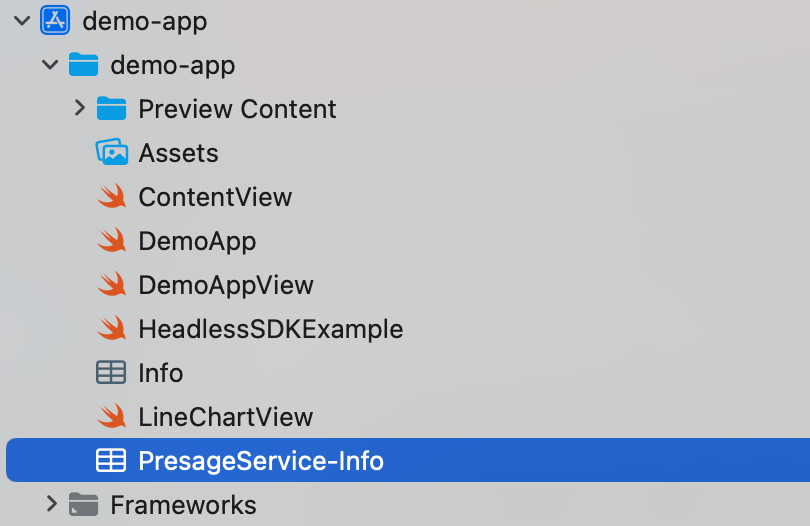
Note: Each bundle identifier can only be registered once. You cannot create multiple OAuth configs for the same bundle ID.
Breathing metrics are enabled by default. Cardio metrics are not. Enable them explicitly:
let sdk = SmartSpectraSDK.shared

sdk.config.requestedMetrics = SmartSpectraConfig.breathingMetrics + SmartSpectraConfig.cardioMetrics
// or
sdk.config.requestedMetrics = [
    .breathingRate,
    .pulseRate,
    .hrv
]MetricsBuffer was removed. Replace metricsBuffer with sdk.metrics.
The SDK now uses Swift Observation, so Combine-style $ publishers such as
sdk.$metrics are no longer available.
// Before
sdk.$metricsBuffer.sink { buffer in
    let pulse = buffer?.pulse.rate.last?.value
}

// After in SwiftUI
if let metrics = sdk.metrics {
    let pulse = metrics.cardio.pulseRate.last?.value
}
SwiftUI views automatically track reads of sdk.metrics. For UIKit or other
non-SwiftUI code, observe SDK properties with withObservationTracking and
re-arm the observation after each change.
Field mapping:
Old (metricsBuffer) | New (metrics) |
|---|---|
pulse.rate | cardio.pulseRate |
pulse.trace | cardio.arterialPressureTrace |
breathing.rate | breathing.rate |
breathing.upperTrace | breathing.upperTrace |
Important: Cardio fields now require cardio metrics to be requested explicitly, for example through
requestedMetrics. Previously,MetricsBufferprovided pulse rate regardless of configuration.
SmartSpectraSDK.processingStatus uses the current lifecycle states. Update any switch or comparisons:
| Old case | New case |
|---|---|
.processing | .running |
.processed | .idle |
.idle | .idle |
.starting | .starting |
.stopping | .stopping |
.error | .error |
SmartSpectraVitalsProcessor is no longer part of the public Swift API. Use the async lifecycle methods on SmartSpectraSDK.shared:
do {
    try await SmartSpectraSDK.shared.start()

    // Observe SmartSpectraSDK.shared.metrics,
    // SmartSpectraSDK.shared.processingStatus,
    // SmartSpectraSDK.shared.validationStatus, etc.

    try await SmartSpectraSDK.shared.stop()
} catch {
    print("SmartSpectra error: \(error)")
}
For older-to-current mappings, see the iOS Migration Guide.
- Email: support@presagetech.com
- Submit a GitHub issue
- API reference: Swift API reference